![Bridebook-logo-blue (1)-1.png]](https://support.bridebook.com/hs-fs/hubfs/Bridebook-logo-blue%20(1)-1.png?height=20&name=Bridebook-logo-blue%20(1)-1.png)
Not sure where to start with your wedding plans, or what to tackle next? Bridebook's AI Wedding Planner can help you find your next step and get things done.
Chat with it to explore venues, get planning advice, update your checklist and add guests. It uses the wedding details already saved in Bridebook, so you shouldn't need to explain your plans from scratch.
Getting started
Log in to Bridebook and look for the planner button. If the planner is available on your account, select it to start a conversation.
Tell it what you’re working on, what you’re unsure about or what you’d like help with. You can ask in your own words there’s no special format to follow.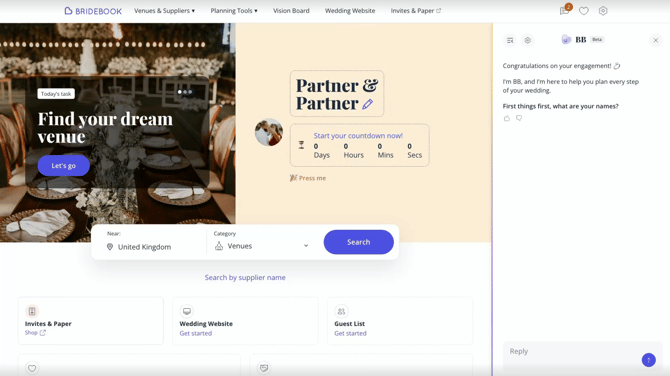
For example:
- Not sure what’s next? “What should we focus on at this stage of our planning?”
- Looking for a venue? “Help us find a venue near Birmingham for 80 guests.”
- Preparing for a viewing? “What questions should we ask when we visit a venue?”
If you’re new to Bridebook, the planner may first help you add your wedding details so its suggestions are more relevant to your plans.
You can leave the conversation whenever you like. Select Home to explore Bridebook, then return to the planner whenever you need a hand.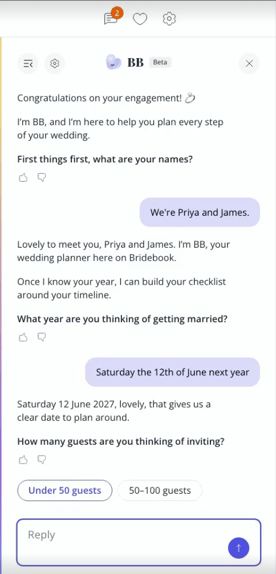
Find and compare wedding venues
Tell the planner where you'd like to get married, roughly how many guests you're inviting and what matters to you. For example:
"Find us a countryside wedding venue near London for 100 guests, with plenty of outdoor space."
You can then ask questions, compare venues, open their profiles and add or remove favourites.
Keep the conversation going to narrow down your options. Try saying, "We'd prefer somewhere with accommodation," or "Show us more venues like this one."
The planner answers questions using information on venue's Bridebook profiles. Check date availability and prices for your particular wedding directly with the venue. AI answers can sometimes be wrong, so confirm important details before making a decision.
You can also browse venues yourself using the usual Search page. The planner currently searches for venues only, use Search to look for photographers, florists and other suppliers.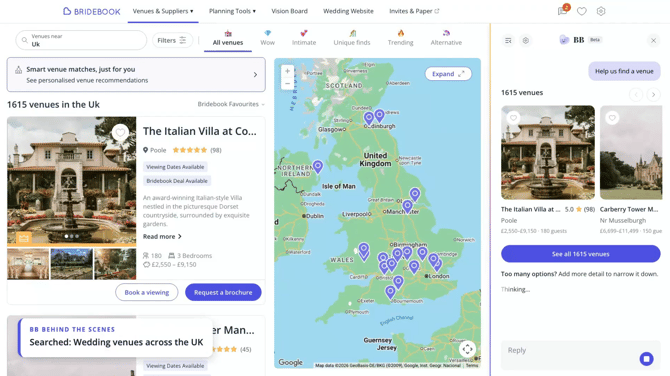
Contact a venue when you're ready
The planner can help prepare a venue enquiry using your saved wedding details and what you've discussed.
Nothing is sent without your approval. When an enquiry is ready, you'll see these choices:
|
Your choice |
What happens |
|
Approve |
Sends the enquiry straight away if all required details are present. There is no second confirmation. |
|
Review |
Opens the enquiry form with your message and known details filled in, so you can check or edit them before sending. |
|
Decline |
Dismisses the suggested enquiry without sending it. |
If more required information is needed, choosing Approve or Review opens the enquiry form. Fill in the missing details and send it from there.
You can enquire without a wedding date or guest count. It's fine if you're still deciding. Any other required fields still need to be completed.
If you close the form without sending, the suggested enquiry stays in your conversation. After a successful send, the planner will confirm that your enquiry has been sent.
Want to contact several venues?
You can do this one at a time, approving each enquiry separately.
Requested a brochure and landed in the planner?
After you sign up or log in to request a brochure, the planner may open to help you contact that venue. It should keep the venue you selected, so you can continue your enquiry.
Keep your checklist moving
Ask the planner to suggest what to do next or help you update your Checklist.
It can:
Mark tasks as done or not done.
Create custom tasks.
Change or delete custom tasks.
For example, try "Add a task to choose our ceremony music" or "Mark our venue search task as done."
The planner may also mark a relevant task as complete after a related action or when you tell it you've finished something. If a task still needs work, ask it to mark it as not done.
Get help with your Guest List
The planner can add guests, update some guest details and answer questions about your guest numbers or statuses.
You could ask:
"Add Alex Smith and Sam Jones to our guest list."
"How many guests have we added?"
"Open our Guest List."
Adding guests doesn't automatically open the full list. If you'd like to see it afterwards, ask the planner to add the guests and show you the list.
For changes it can't make in the conversation, open Guest List and update them there.
Keep your wedding details up to date
The planner uses the wedding information you've already saved in Bridebook and asks for missing details when needed.
It can save details you provide for the first time. Before changing wedding details that are already saved, it will ask for your approval.
For some changes, it will guide you to Settings or another Bridebook tool.
Use the planner in a way that suits you
On desktop, the planner opens in a panel on the right, with your Bridebook page visible beside it.
On mobile, it opens full screen. A venue profile or article may open over the conversation; close it to return to your chat.
You can close the conversation whenever you like. The planner button stays available when you need it again.
To remove the planner and its button, turn it off in Settings. Your choice stays saved between visits, and you can turn it back on there whenever you want. Bridebook's other planning tools remain available.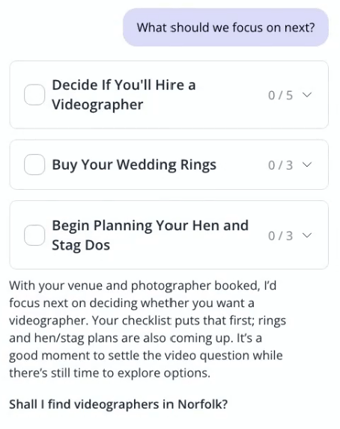
What you'll need to do outside the chat
The planner can offer advice on lots of wedding topics, but some things need to be managed directly in Bridebook's tools.
It can't currently:
Add or change items or spending in your Budget.
Use AI Pricing within the conversation.
Build or edit your Wedding Website.
Arrange or manage venue visits.
Manage Inspiration or Scrapbook.
Search for suppliers other than venues.
Book a venue or supplier for you.
If you ask for something it can't do, it will explain and point you towards the relevant page or tool.
There is currently one ongoing planner conversation, with no separate chats or chat-history page.
Need some help
If the planner isn't loading or replying, try closing and reopening it, or refreshing the page. If you're using the app, check that it's up to date.
If a guest or checklist update isn't showing, open the relevant tool and refresh it to check.
Having trouble, or spotted an answer that doesn't look right? Contact Bridebook support and tell us what you asked, what happened and what you expected. A screenshot is helpful if you have one, but isn't required.
If an enquiry seems to have been sent without your approval, or the planner says it sent one but you can't find it, contact us so we can check.