
Turn your Bridebook link into a QR code
Print it on flyers, display it at open days, or put it on your venue signage. When couples scan it, they go straight to your Bridebook enquiry form. No typing, no searching, just a quick scan.
Great for
3 steps to get your QR code
Copy your URL from Bridebook Business
Go to Bridebook Business and head to the Website Widget section. In the embed code, find the URL inside the src="" part. Copy just that URL, starting with https://enquiry.bridebook.com.

https://enquiry.bridebook.com?publicId=YOUR_VENUE_ID&widgetId=YOUR_WIDGET_IDGo to a QR code generator and paste your URL
Open any free QR code generator that works for you. Paste your Bridebook URL into the website URL field. The QR code should generate automatically as you type.
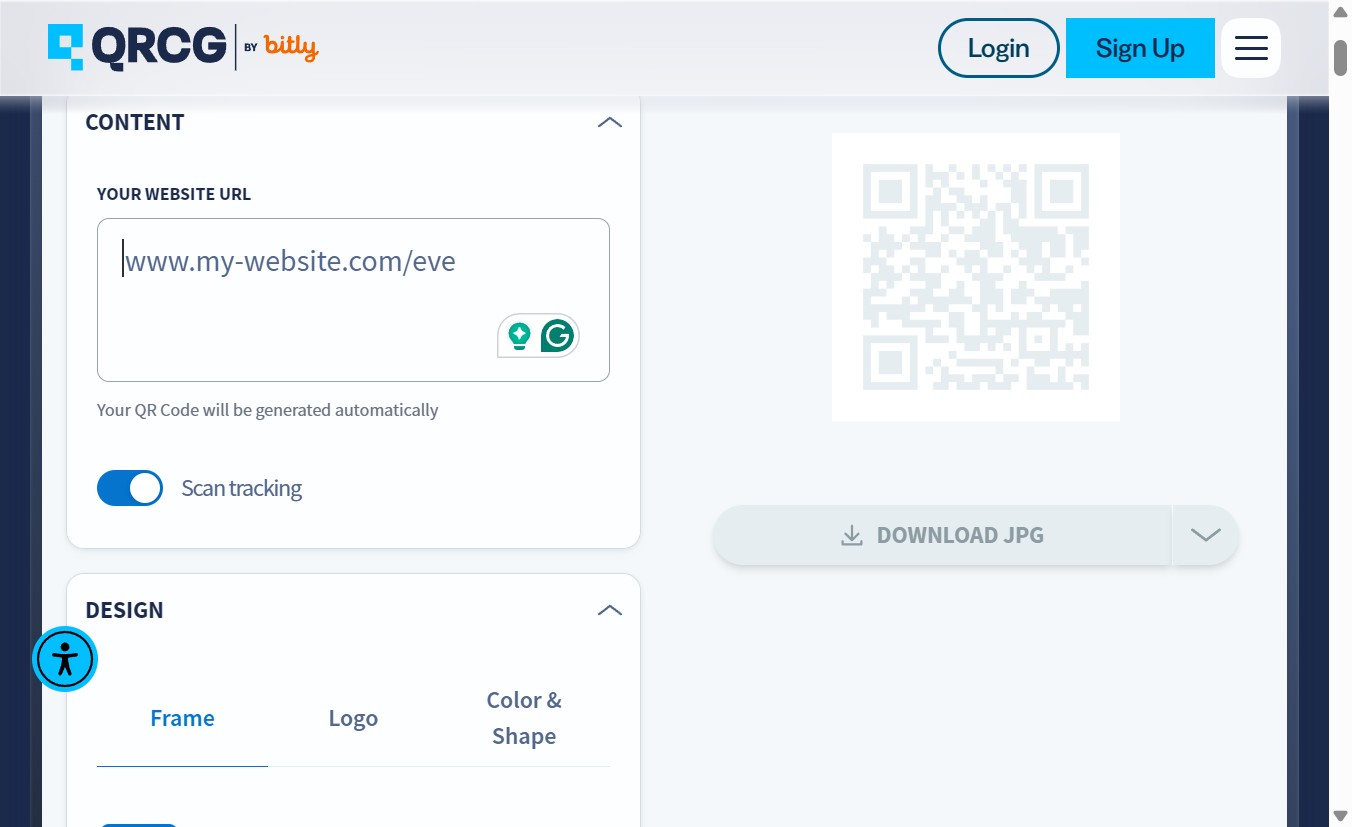

Any generator works
You can use any free QR code tool. Other popular options include QR Code Generator at qr-code-generator.com or QRCode Monkey at qrcode-monkey.com. Just paste your URL and download.
Download and use it anywhere
Click Download JPG or Download PNG to save your QR code. You can then drop it into any design, print it on flyers or cards, or display it on a screen at your venue.
What happens when someone scans it
Their phone opens your Bridebook enquiry form instantly
They can book a showround, register for an Open Day, or send an enquiry on the spot. Every submission lands in Bridebook Business tagged as Website Widget.
Tip
Test your QR code before printing. Scan it with your phone camera and make sure it opens the right Bridebook form. If you are printing at a small size, use PNG for the sharpest result.
Ready to go?
Get your unique link from Bridebook Business
You need your widget URL before you can create a QR code. Find it in the Website Widget section of Bridebook Business.
Go to Website Widget →