
Wix - How to install the Bridebook Website Widget
Choose how you want the widget to appear on your website, then follow the steps for your chosen option.
Before you start
Watch the walkthrough
4 steps to go live
Get your widget URL from Bridebook Business
Log into Bridebook Business and head to the Website Widget section. You need the URL from your embed code. Copy just the address inside the src="" part of the iframe, not the full iframe tag itself.
https://enquiry.bridebook.com?publicId=YOUR_VENUE_ID&widgetId=YOUR_WIDGET_IDJust the URL, not the iframe code
Copy everything between the quotes after src= in your embed code. Do not copy the full <iframe> tag as pasting that will cause a Forbidden error.
Open your page in the Wix editor and add an Embed element
In the Wix editor, open the page where you want the widget. Click + Add in the top left, then click Elements. Search for html in the search bar. You will see two options. Click Embed a site.

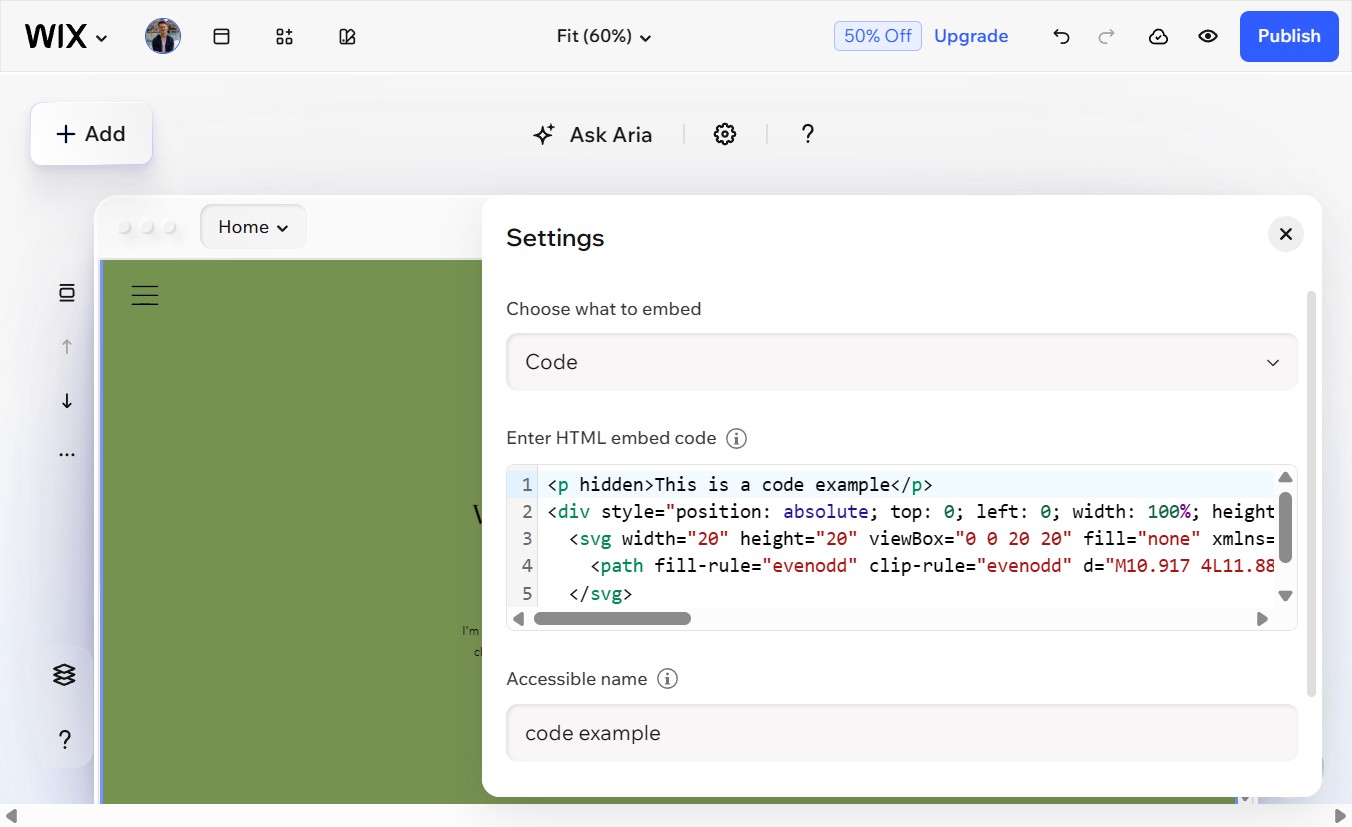
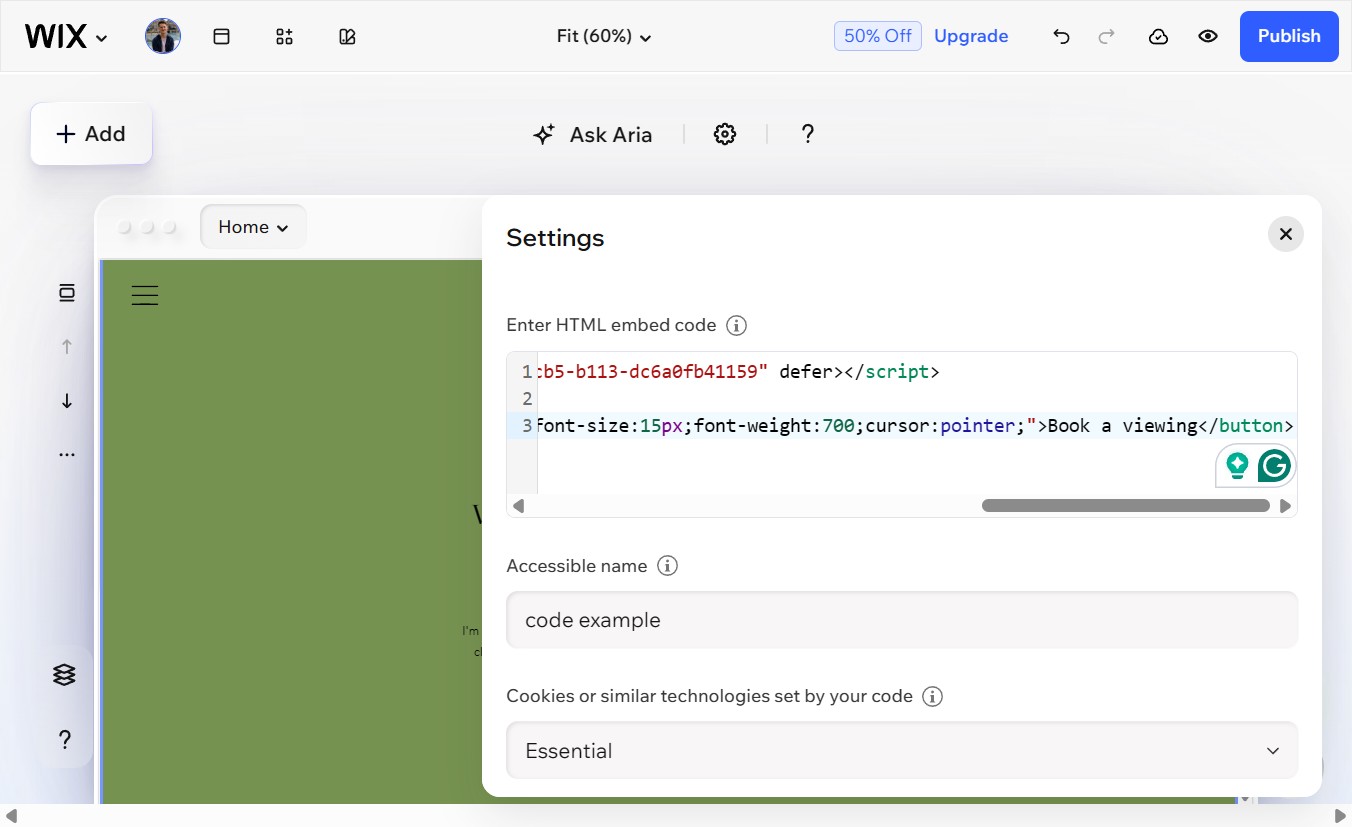
Do not use Embed code
The Embed code option creates a nested iframe which blocks external content and will show a Forbidden error. Always use Embed a site for the embedded Bridebook widget.
Paste the URL and click Apply
An HTML Element will be placed on your page and a Settings panel will open on the right. Make sure Choose what to embed is set to Link. Paste your Bridebook URL into the Link field, then click Apply. The widget will load inside the element.
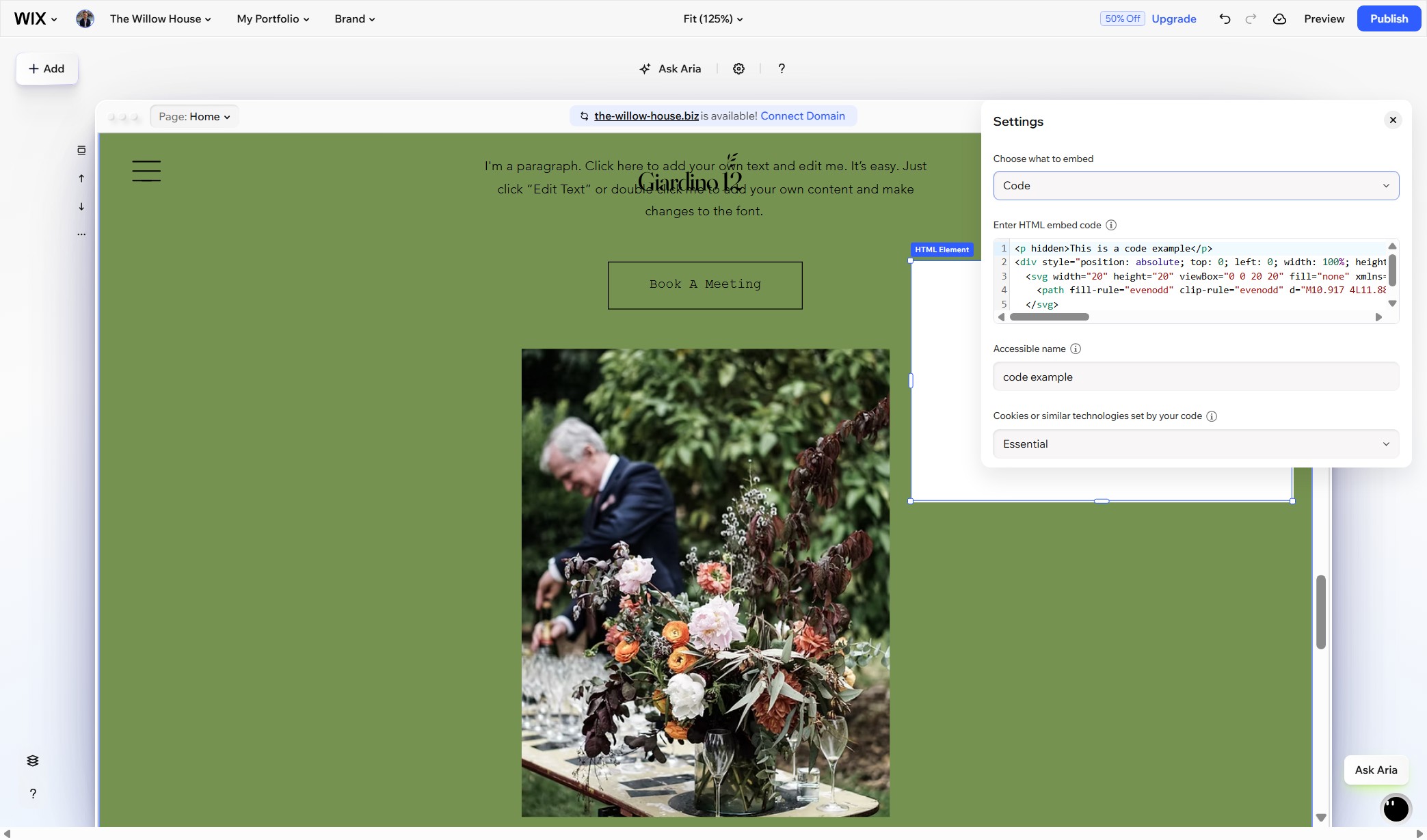
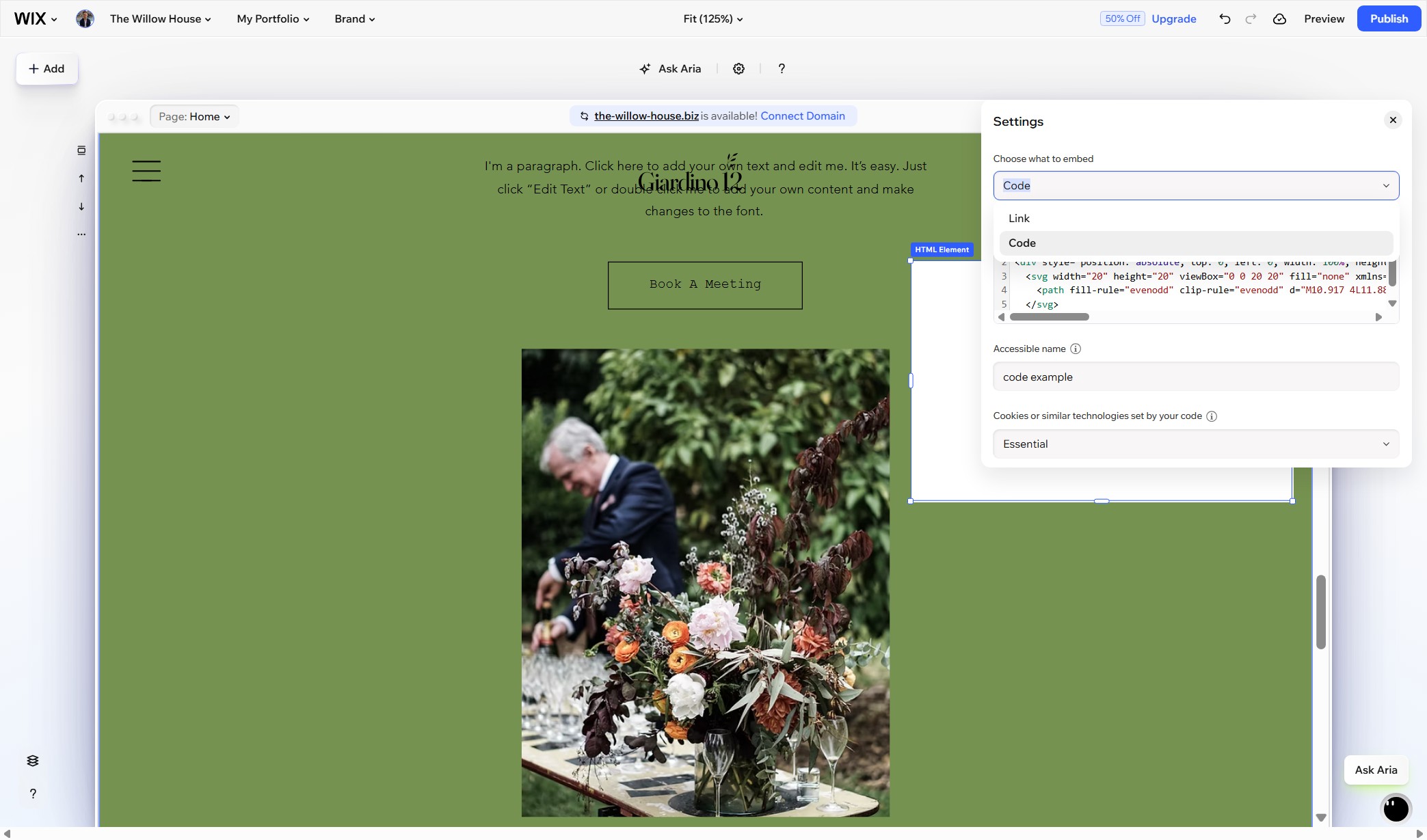
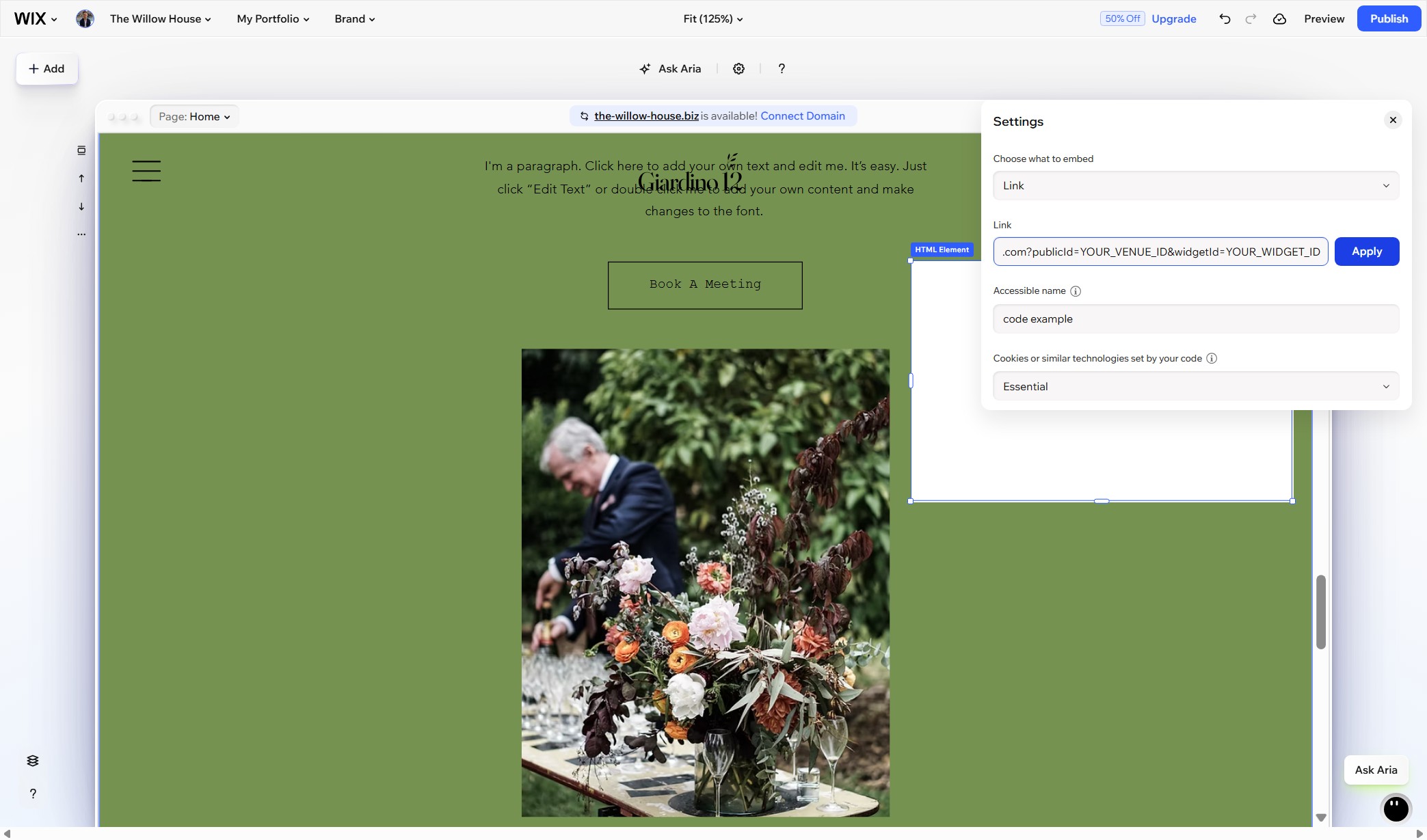
Make sure you click Apply
The widget will not load until you click Apply. If you close the panel without clicking it, the element will stay blank.
Resize the element and publish
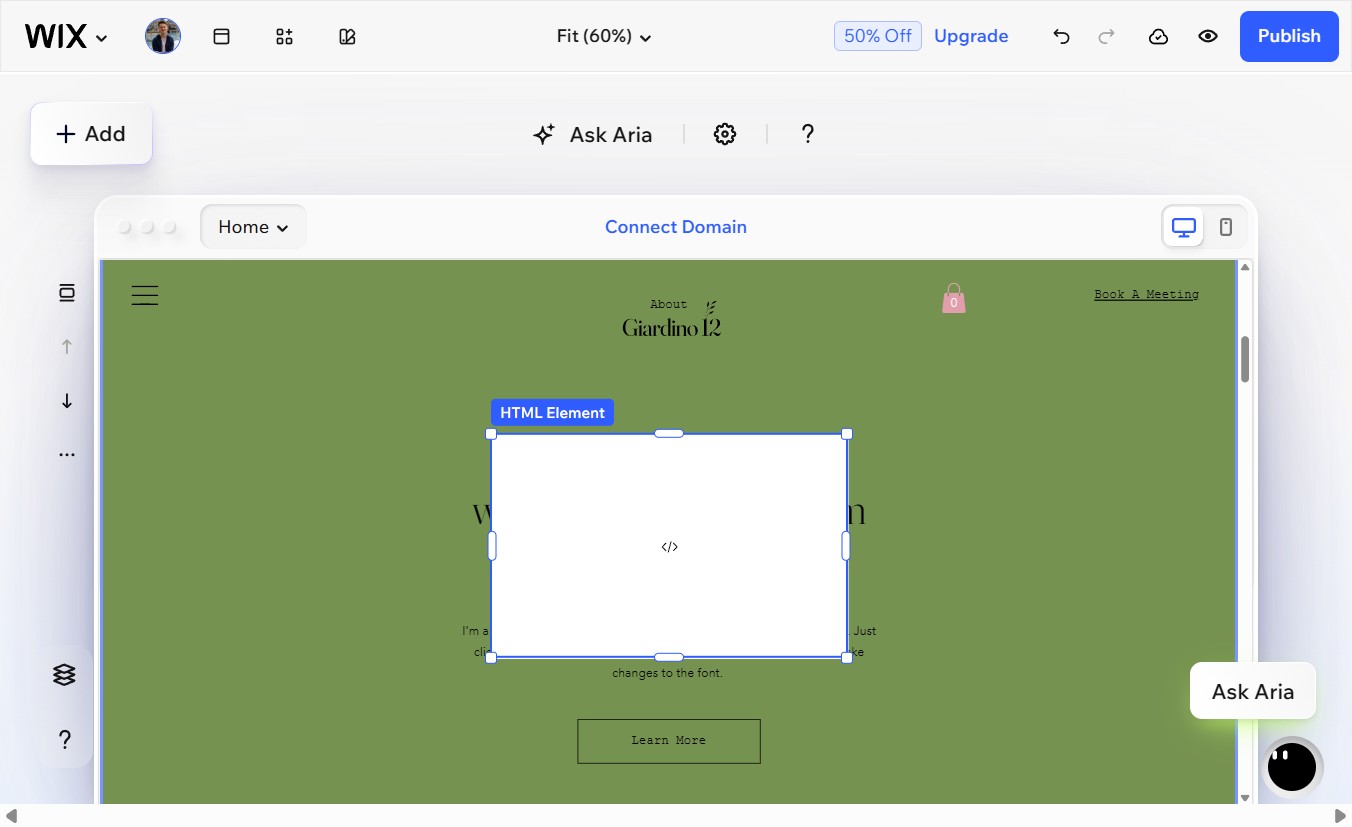
Drag the edges of the HTML element to resize it so the full Bridebook form is visible. A height of around 700px works well for most screens. When you are happy, click Publish in the top right and open your live page to confirm it is showing correctly.
What to look for
The Bridebook form loads inside the element on your page
Couples will see options to book a showround, register for an Open Day, or send an enquiry. Every submission lands in Bridebook Business tagged as Website Widget.
Still seeing a blank box?
Make sure the Settings dropdown says Link not Code, that you pasted only the URL (not the full iframe tag), and that you clicked Apply before closing the panel.


Works with
Ready to go?
Set up your widget in Bridebook Business
Get your unique code, choose your widget type, and go live. Every enquiry lands in Bridebook Business automatically, tagged by source and ready to action.
Set up your widget →