
WordPress - How to install the Bridebook Website Widget
Choose how you want the widget to appear on your website, then follow the steps for your chosen option.
Before you start
5 steps to go live
Get your widget code from Bridebook Business
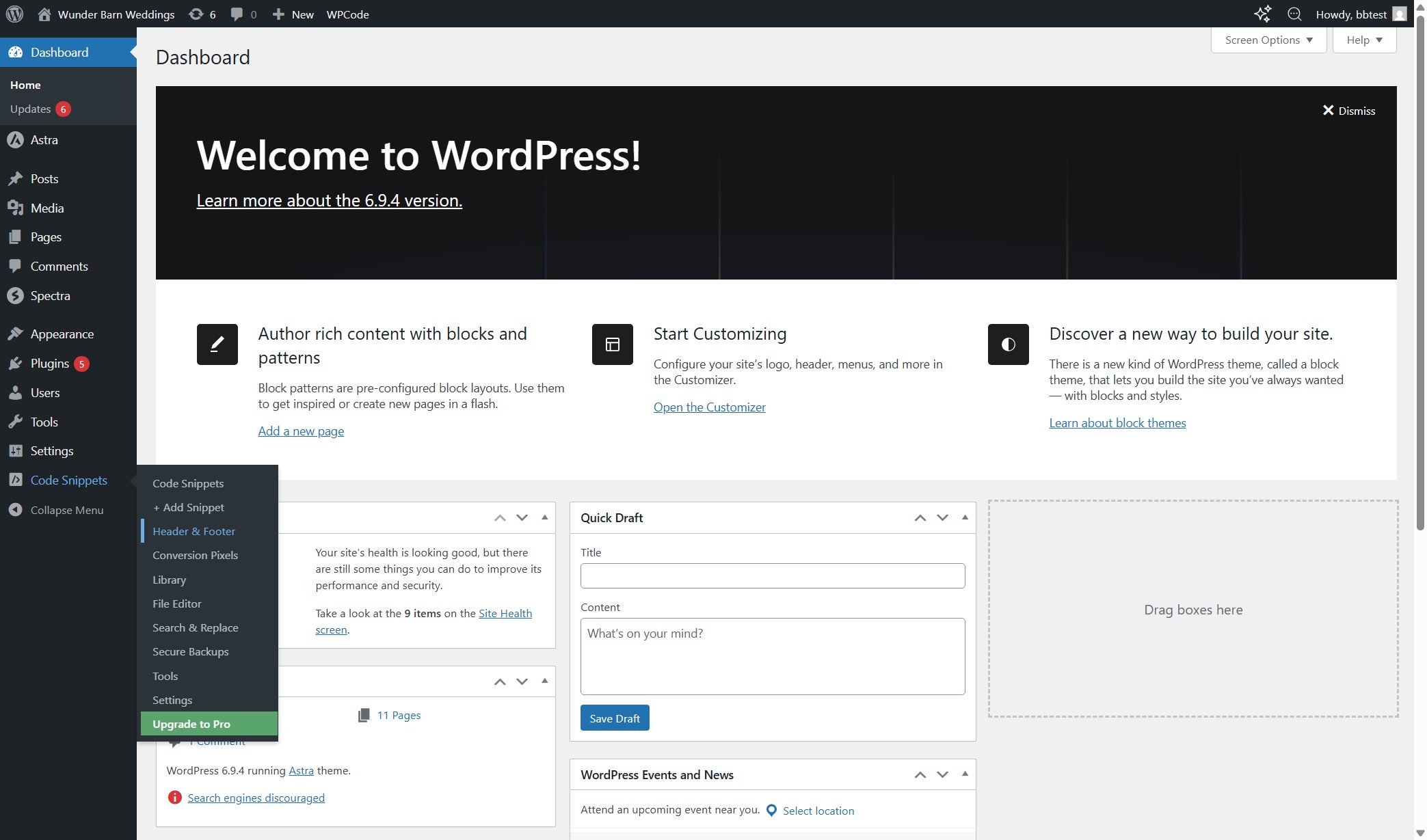
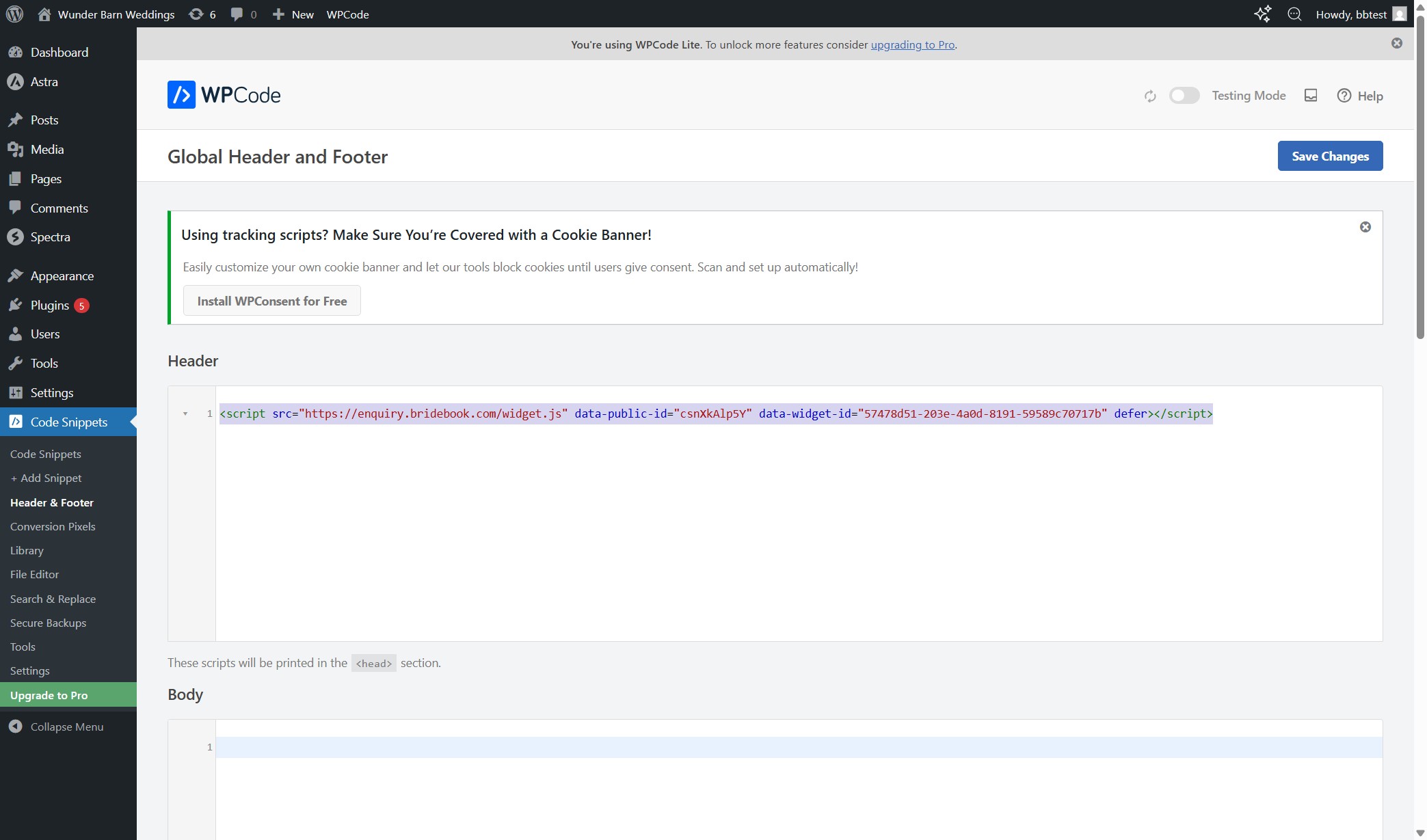
Log into Bridebook Business and head to the Website Widget section. You will find your unique embed code ready to copy. This code is specific to your venue — do not share it or use someone else's.
<iframe width="100%" height="600"
  src="https://enquiry.bridebook.com?publicId=YOUR_VENUE_ID&widgetId=YOUR_WIDGET_ID">
</iframe>Open your WordPress dashboard and go to Pages
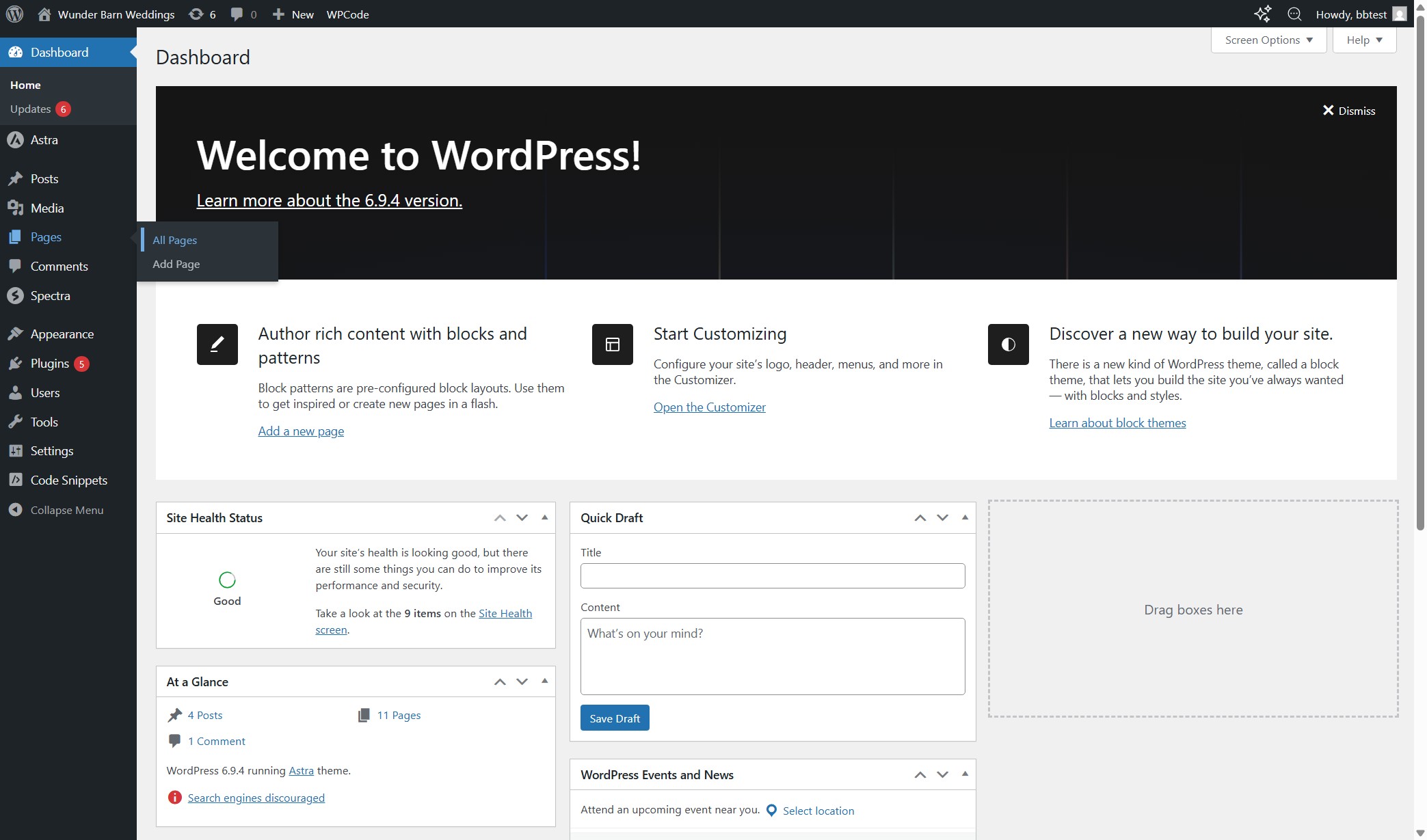
Log in to your WordPress admin at yoursite.com/wp-admin. Once inside, hover over Pages in the left sidebar and click All Pages to see every page on your site.

Open the page you want to edit
Find the page where you want the widget to appear and click Edit. Most venues add it to their Contact page, but you could also create a dedicated "Book a Viewing" page if you want to keep it separate.

Add a Custom HTML block
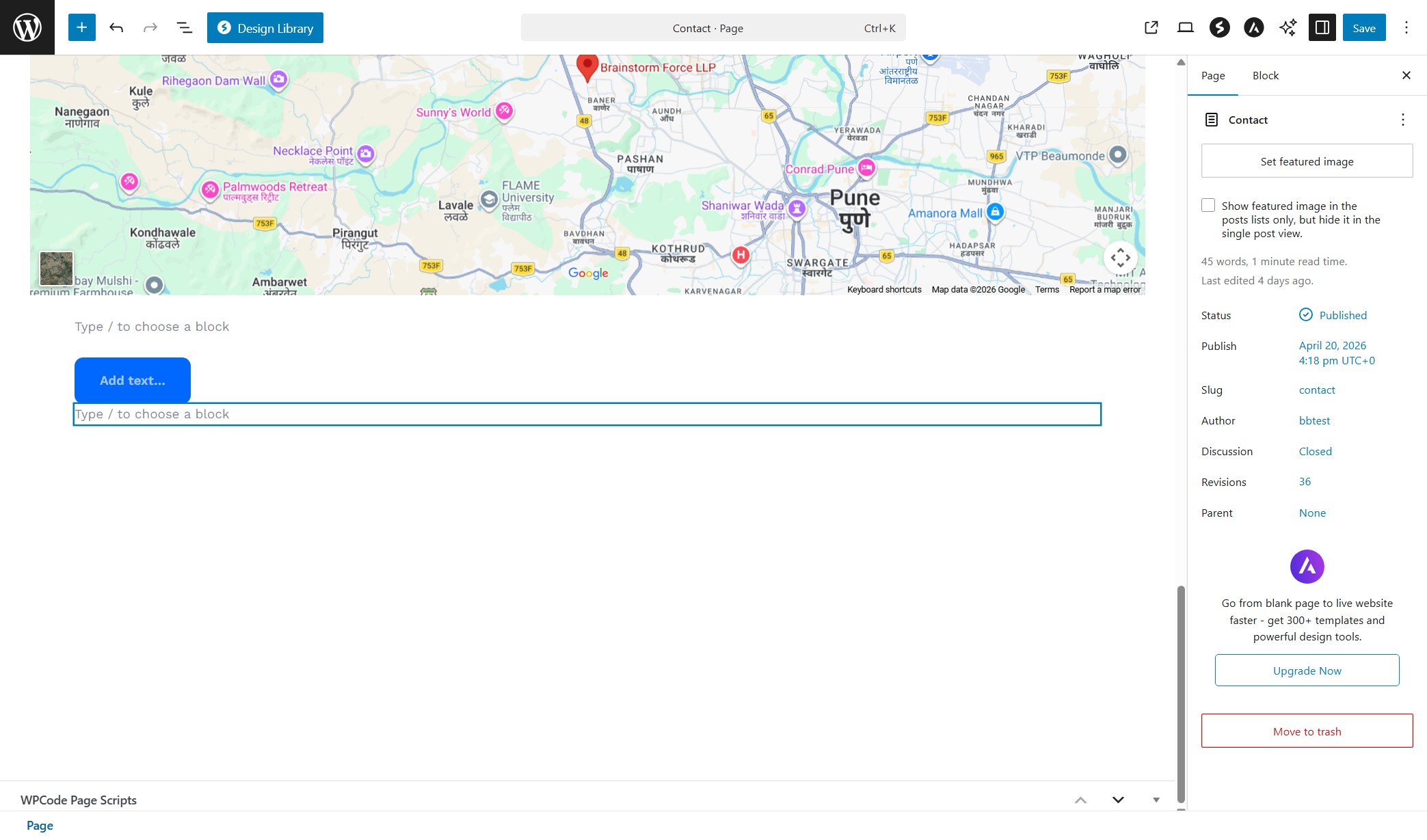
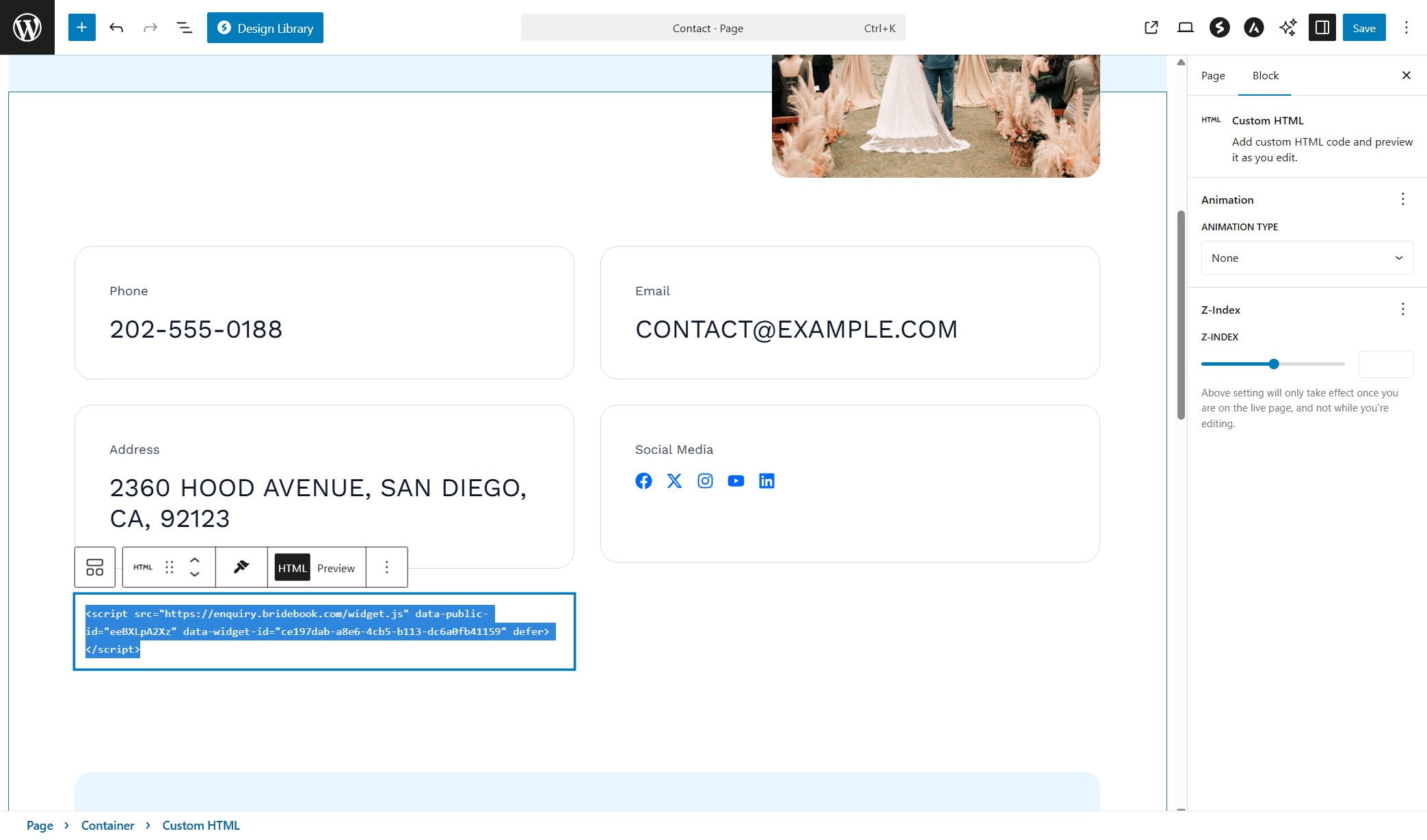
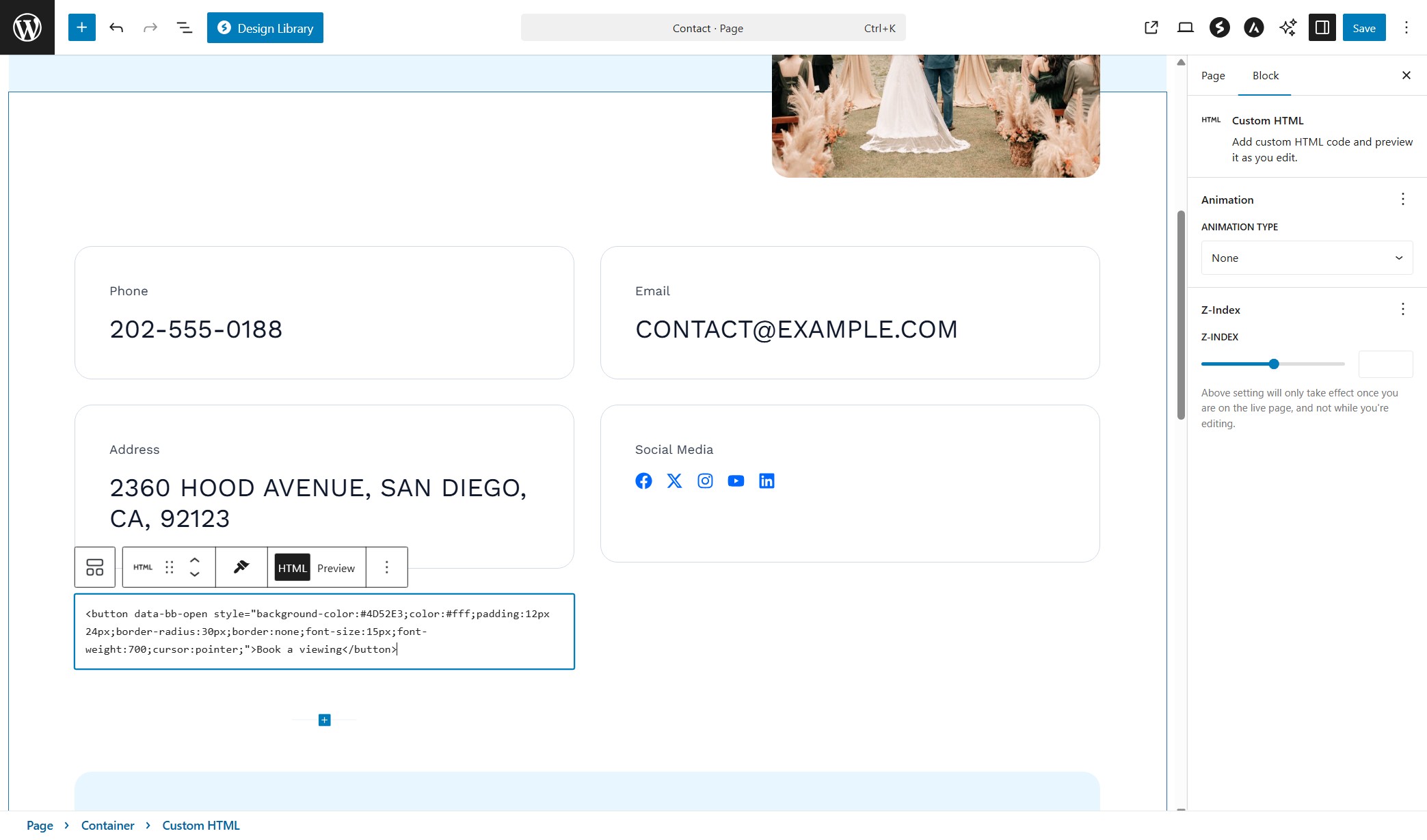
In the block editor, click the + button to add a new block. In the search bar, type html and select Custom HTML from the results. This is the block that lets you paste raw code directly onto your page.


Can't find it?
Make sure you are in HTML view inside the block, not Preview. The block looks like a small code tag icon in the block library.
Paste your code and save
Click inside the Custom HTML block and paste the iframe code you copied from Bridebook Business. Do not add any extra spaces or line breaks around it. Then click Save in the top right corner, and open your page in a new tab to confirm the widget is showing.

What to look for
The Bridebook form loads directly on your page
Couples will see options to book a showround, register for an Open Day, or send an enquiry. Every submission lands in Bridebook Business tagged as Website Widget.
Not showing up?
Clear your browser cache or open the page in a private window. If the widget is still missing, check the code was pasted without any changes to the URL or spacing.



Works with
Ready to go?
Set up your widget in Bridebook Business
Get your unique code, choose your widget type, and go live. Every enquiry lands in Bridebook Business automatically, tagged by source and ready to action.
Set up your widget →