---
title: Add Multiple Users to Your Business Account
description: The more, the merrier! You can now bring your entire team by inviting multiple members to join the party on a single account. 👯♀️ To do this, click on your venue name in the bottom left corner then
---
[Skip to content](https://support.bridebook.com/en/add-multiple-users-to-your-business-account#main-content)
- [English](https://support.bridebook.com/en/add-multiple-users-to-your-business-account)
- [Deutsch](https://support.bridebook.com/de/können-sich-mehrere-personen-in-ein-bridebook-business-konto-einloggen)
- [Français](https://support.bridebook.com/fr/plusieurs-personnes-peuvent-elles-se-connecter-à-un-même-compte-professionnel-/-demandes-de-collaboration)
- [Polski](https://support.bridebook.com/pl/can-multiple-people-have-log-ins-to-a-business-account-collaboration-invites)
English
Show submenu for translations
[Contact us](https://support.bridebook.com/en/kb-tickets/new?hsLang=en)
![Group 20534 (1).png\]](https://support.bridebook.com/hs-fs/hubfs/Group%2020534%20(1).png?height=20&name=Group%2020534%20(1).png)
- [Home](https://support.bridebook.com/en)
- [Products](https://support.bridebook.com/en/bridebook-tiers-membership-plans-)
- [Company](https://partners.bridebook.com/)
Open main navigation
Close main navigation
- [Home](https://support.bridebook.com/en)
- [Products](https://support.bridebook.com/en/bridebook-tiers-membership-plans-)
- [Company](https://partners.bridebook.com/)
- - [English](https://support.bridebook.com/en/add-multiple-users-to-your-business-account)
- [Deutsch](https://support.bridebook.com/de/können-sich-mehrere-personen-in-ein-bridebook-business-konto-einloggen)
- [Français](https://support.bridebook.com/fr/plusieurs-personnes-peuvent-elles-se-connecter-à-un-même-compte-professionnel-/-demandes-de-collaboration)
- [Polski](https://support.bridebook.com/pl/can-multiple-people-have-log-ins-to-a-business-account-collaboration-invites)
English
Show submenu for translations
- [Contact us](https://support.bridebook.com/en/kb-tickets/new)
- [Visit Bridebook Business](https://partners.bridebook.com/)
[Visit Bridebook Business](https://partners.bridebook.com/?hsLang=en)
Everything you need to know
- There are no suggestions because the search field is empty.
1. [Bridebook Business Support](https://support.bridebook.com/en?hsLang=en)
2. [Manage My Account](https://support.bridebook.com/en/manage-my-account?hsLang=en)
3. [Account Settings](https://support.bridebook.com/en/manage-my-account?hsLang=en#account-settings)
# Add Multiple Users to Your Business Account
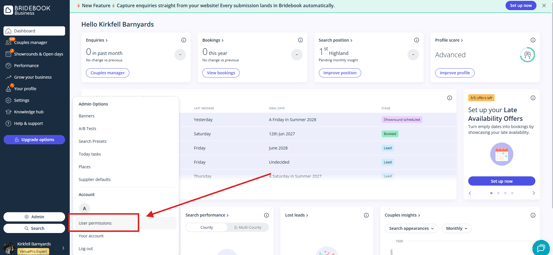
To allow multiple team members to access and manage your Bridebook Business account, simply follow these steps:
1. Click on your business name in the bottom-left corner of your dashboard.
2. Select **User Permissions**.
3. Click **Invite User**.
4. Enter the email address of the person you'd like to invite.
5. Choose the appropriate permission level and send the invitation.
#### Permission Levels
###### Admin:
✅ Can edit all areas of the account and profile
✅ Can invite, manage, and remove other users
###### Editor:
✅ Can edit all areas of the account and profile
❌ Cannot invite, manage, or remove other users
#### What Happens Next?
Once the invitation has been sent, your collaborator will receive an email prompting them to create their own login credentials.
After they've completed the setup process, they'll be able to access your account using their own login details, making it easy for your team to manage your Bridebook profile without sharing passwords. 🔒
#### Haven't Received the Invitation Email?
If your collaborator hasn't received their invitation email, please first review our article on troubleshooting missing collaboration invitations.
🔗**[Fix a Collaboration Email Issue](https://support.bridebook.com/en/fix-a-collaboration-email-issue?hsLang=en)**
#### Need help?
If you've followed the steps in that guide and the invitation email still hasn't arrived, please contact our Customer Support team through the link below.
Be sure to include your business name, login email address and your collaborator's email address so we can investigate the issue as quickly as possible.
👉**[Contact Us](https://share.hsforms.com/1ZZN12s9aQoapXz9Dpu2Y0A1p8l9)**
- [About Bridebook](https://support.bridebook.com/en/about-bridebook?hsLang=en#main-content)
- [Who We Are](https://support.bridebook.com/en/about-bridebook?hsLang=en#who-we-are)
- [T&Cs & GDPR](https://support.bridebook.com/en/about-bridebook?hsLang=en#tcs-gdpr)
- [Tell Us What You Think](https://support.bridebook.com/en/about-bridebook?hsLang=en#tell-us-what-you-think)
- [Customer Service](https://support.bridebook.com/en/about-bridebook?hsLang=en#customer-service)
- [Join Bridebook Business](https://support.bridebook.com/en/join-bridebook-business?hsLang=en#main-content)
- [Getting Started](https://support.bridebook.com/en/join-bridebook-business?hsLang=en#getting-started)
- [About Bridebook Business](https://support.bridebook.com/en/join-bridebook-business?hsLang=en#about-bridebook-business)
- [Tiers and Premium Memberships](https://support.bridebook.com/en/tiers-and-premium-memberships?hsLang=en#main-content)
- [VenuePro](https://support.bridebook.com/en/tiers-and-premium-memberships?hsLang=en#venuepro)
- [SupplierPro](https://support.bridebook.com/en/tiers-and-premium-memberships?hsLang=en#supplierpro)
- [Essentials](https://support.bridebook.com/en/tiers-and-premium-memberships?hsLang=en#essentials)
- [Search Boost](https://support.bridebook.com/en/tiers-and-premium-memberships?hsLang=en#search-boost)
- [Limited Profile](https://support.bridebook.com/en/tiers-and-premium-memberships?hsLang=en#limited-profile)
- [Premium Tools and Features](https://support.bridebook.com/en/premium-tools-and-features?hsLang=en#main-content)
- [Special Offers](https://support.bridebook.com/en/premium-tools-and-features?hsLang=en#special-offers)
- [Advanced Analytics](https://support.bridebook.com/en/premium-tools-and-features?hsLang=en#advanced-analytics)
- [Couple Targeting](https://support.bridebook.com/en/premium-tools-and-features?hsLang=en#couple-targeting)
- [Real Weddings](https://support.bridebook.com/en/premium-tools-and-features?hsLang=en#real-weddings)
- [Edit My Profile](https://support.bridebook.com/en/edit-my-profile?hsLang=en#main-content)
- [Search Position](https://support.bridebook.com/en/edit-my-profile?hsLang=en#search-position)
- [Profile Details](https://support.bridebook.com/en/edit-my-profile?hsLang=en#profile-details)
- [My Network](https://support.bridebook.com/en/edit-my-profile?hsLang=en#my-network)
- [Wedding Fairs](https://support.bridebook.com/en/edit-my-profile?hsLang=en#wedding-fairs)
- [Reviews & Testimonials](https://support.bridebook.com/en/edit-my-profile?hsLang=en#reviews-testimonials)
- [Photos](https://support.bridebook.com/en/edit-my-profile?hsLang=en#photos)
- [Videos](https://support.bridebook.com/en/edit-my-profile?hsLang=en#videos)
- [Social Media](https://support.bridebook.com/en/edit-my-profile?hsLang=en#social-media)
- [Manage My Couples](https://support.bridebook.com/en/manage-my-couples?hsLang=en#main-content)
- [Couples Manager](https://support.bridebook.com/en/manage-my-couples?hsLang=en#couples-manager)
- [The Website Widget](https://support.bridebook.com/en/manage-my-couples?hsLang=en#the-website-widget)
- [Manage My Account](https://support.bridebook.com/en/manage-my-account?hsLang=en#main-content)
- [Account Settings](https://support.bridebook.com/en/manage-my-account?hsLang=en#account-settings)
- [My Subscription](https://support.bridebook.com/en/manage-my-account?hsLang=en#my-subscription)
- [Badges](https://support.bridebook.com/en/manage-my-account?hsLang=en#badges)
- [New Releases](https://support.bridebook.com/en/new-releases?hsLang=en#main-content)
- [Whats New?](https://support.bridebook.com/en/new-releases?hsLang=en#whats-new)
- [International Couples](https://support.bridebook.com/en/new-releases?hsLang=en#international-couples)
- [Webinars & Wedding Reports](https://support.bridebook.com/en/webinars-wedding-reports?hsLang=en#main-content)
- [Wedding Reports from previous years](https://support.bridebook.com/en/webinars-wedding-reports?hsLang=en#wedding-reports-from-previous-years)
- [Webinars](https://support.bridebook.com/en/webinars-wedding-reports?hsLang=en#webinars)
- [Troubleshooting](https://support.bridebook.com/en/troubleshooting?hsLang=en#main-content)
- [Bridebook Account](https://support.bridebook.com/en/troubleshooting?hsLang=en#bridebook-account)
- [Logging In](https://support.bridebook.com/en/troubleshooting?hsLang=en#logging-in)
- [Email Issues](https://support.bridebook.com/en/troubleshooting?hsLang=en#email-issues)
- [Browsers](https://support.bridebook.com/en/troubleshooting?hsLang=en#browsers)
- [Error Messages](https://support.bridebook.com/en/troubleshooting?hsLang=en#error-messages)
[](http://bridebook.co.uk)
43 Manchester Street, London, W1U 7LP
Copyright © 2025, Bridebook Business (Main Office)