![Bridebook-logo-blue (1)-1.png]](https://support.bridebook.com/hs-fs/hubfs/Bridebook-logo-blue%20(1)-1.png?height=20&name=Bridebook-logo-blue%20(1)-1.png)
Upload your guests in bulk using our simple spreadsheet template and get RSVP-ready in minutes.
Planning your guest list elsewhere first? You’re not alone, many couples start in Google Sheets before moving into Bridebook. Now, you can easily bring that list straight into Bridebook and unlock powerful tools like RSVPs, guest messaging, and event management ✨
✨ Why use spreadsheet import?
- Save time by adding guests in bulk
- Move your existing list from Google Sheets or Excel
- Instantly start using:
- RSVP tracking
- Guest messaging
- Event planning tools
This feature is designed to make your planning smoother, faster, and more flexible 💙
📥 Step-by-step: How to import your guest list
1. Go to your Guest List
- Open Bridebook
- Navigate to Planning → Guest List
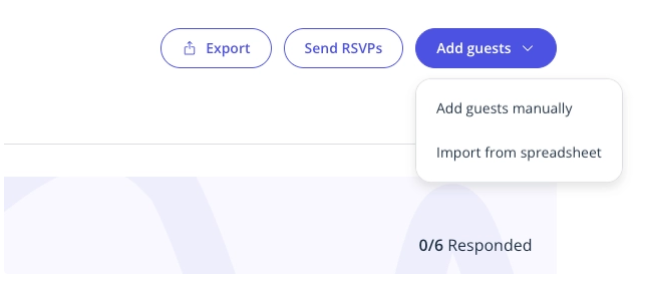
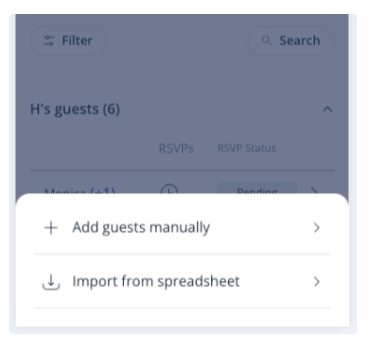
- Click Add guests → Import from spreadsheet
2. Open the template
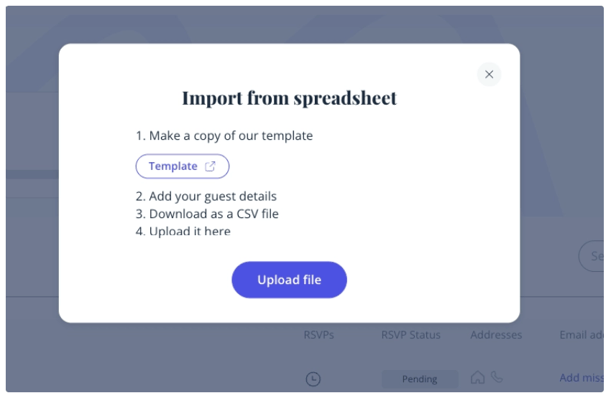
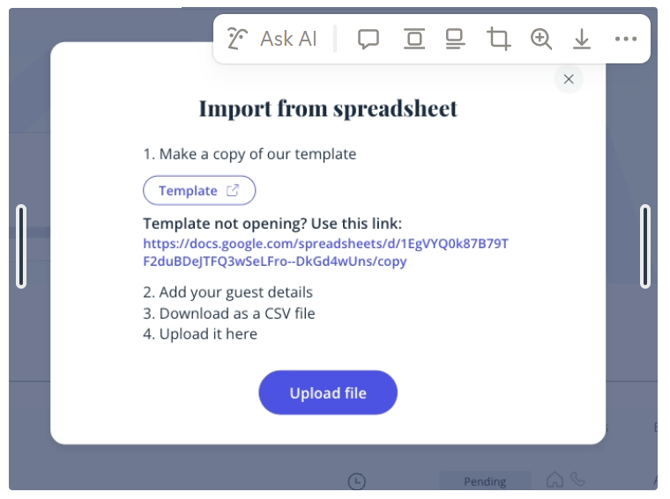
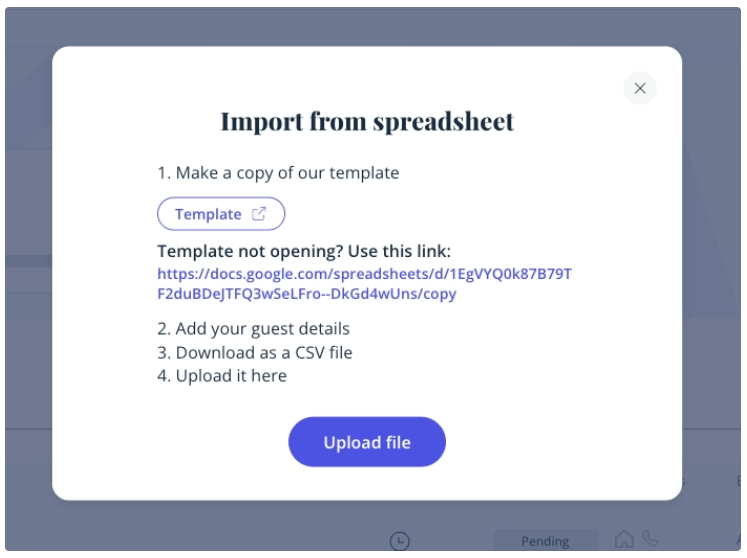
A pop-up will guide you through the process:
- Click “Template”
- Wait a moment (there may be a short load time)
- A new tab will open with the template
- If it doesn’t open automatically, click the link shown in the pop-up
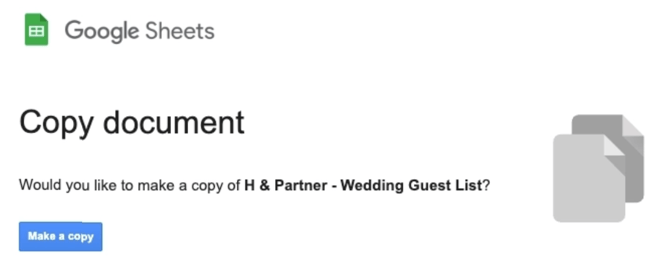
3. Make your own copy
In Google Sheets:
- Click “Make a copy”
- This creates your own editable version of the template
💡 This copy is saved to your Google Drive and is completely private to you.
4. Fill in your guest details
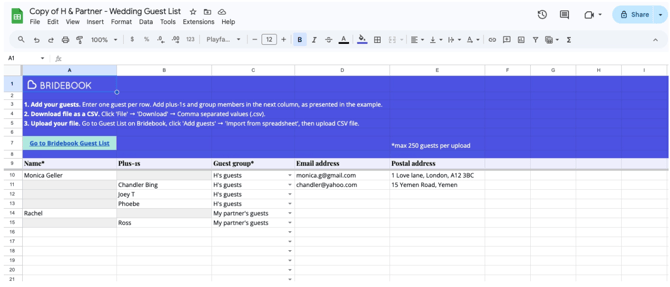
Add your guests into the sheet following these guidelines:
✅ Required fields:
- Guest Name
- Guest Group (e.g. Bride’s Family, Groom’s Friends)
➕ Optional fields:
- Plus ones
- Email addresses
- Postal addresses
5. Download your file
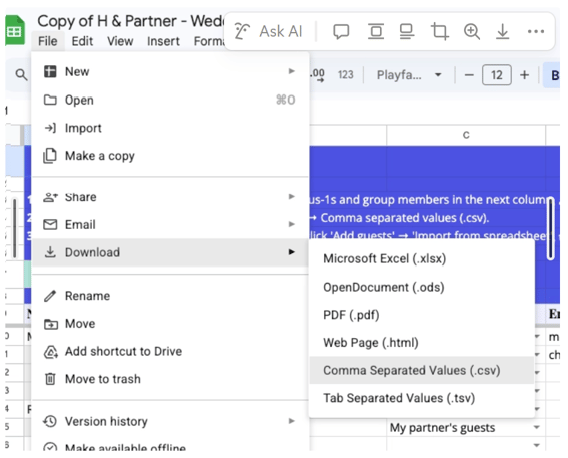
Once your list is ready:
- Click File → Download → Comma Separated Values (.csv)
- This saves the correct file format to your device
6. Upload your guest list to Bridebook
- Return to Bridebook
- Click “Upload file”
- Select your downloaded CSV file
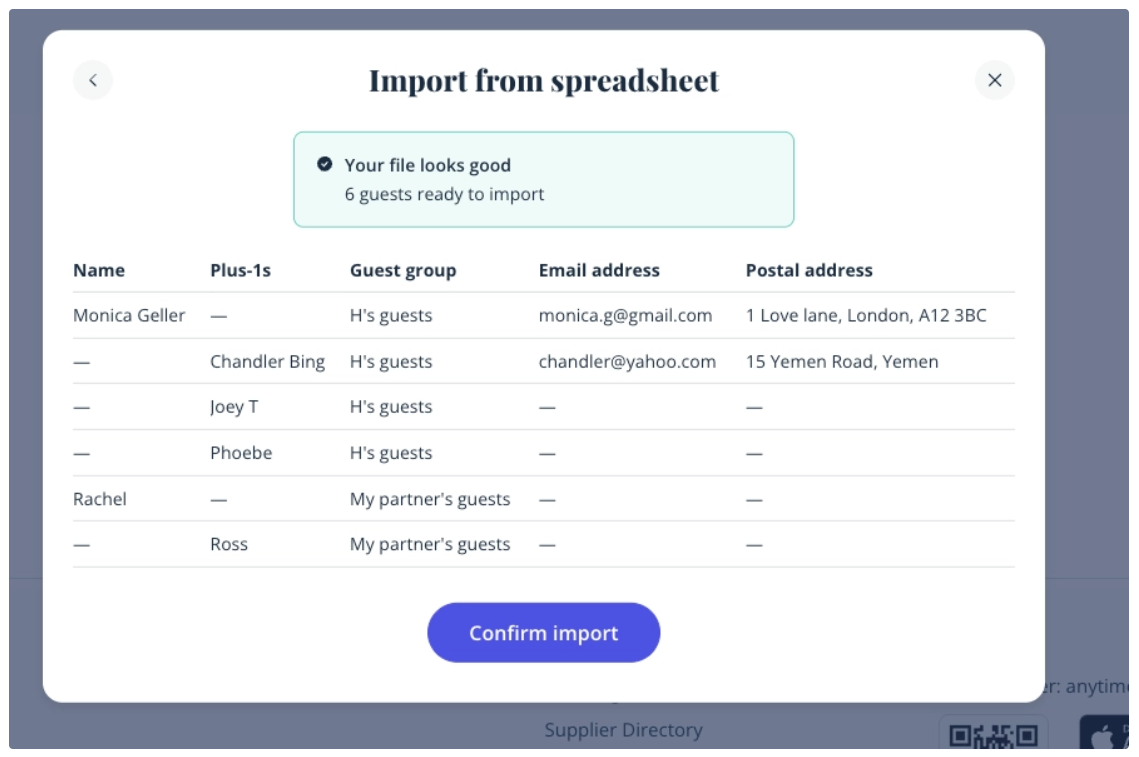
You’ll then see a preview of your guests 👀
- If everything looks correct → click “Confirm import”
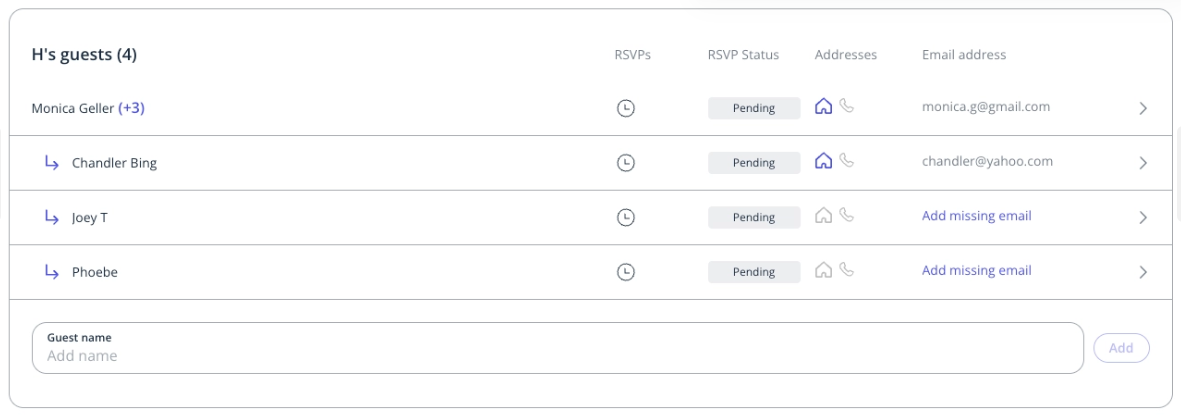
- Your guests will instantly appear in your Guest List 🎉
⚠️ Important formatting rules ⚠️
To ensure your upload works correctly:
- One guest per row only
(No combining names like “John & Sarah”) - Plus ones must be on a separate row
(e.g. add “Sarah” underneath “John”) - No duplicate names
(either within your file or already in Bridebook) - Stick to the template columns only
(extra columns won’t be recognised) - Maximum 250 guests per upload
(you can upload multiple files if needed)
⚠️ If there’s an issue with your file⚠️
Don’t worry — we’ll show you exactly what needs fixing:
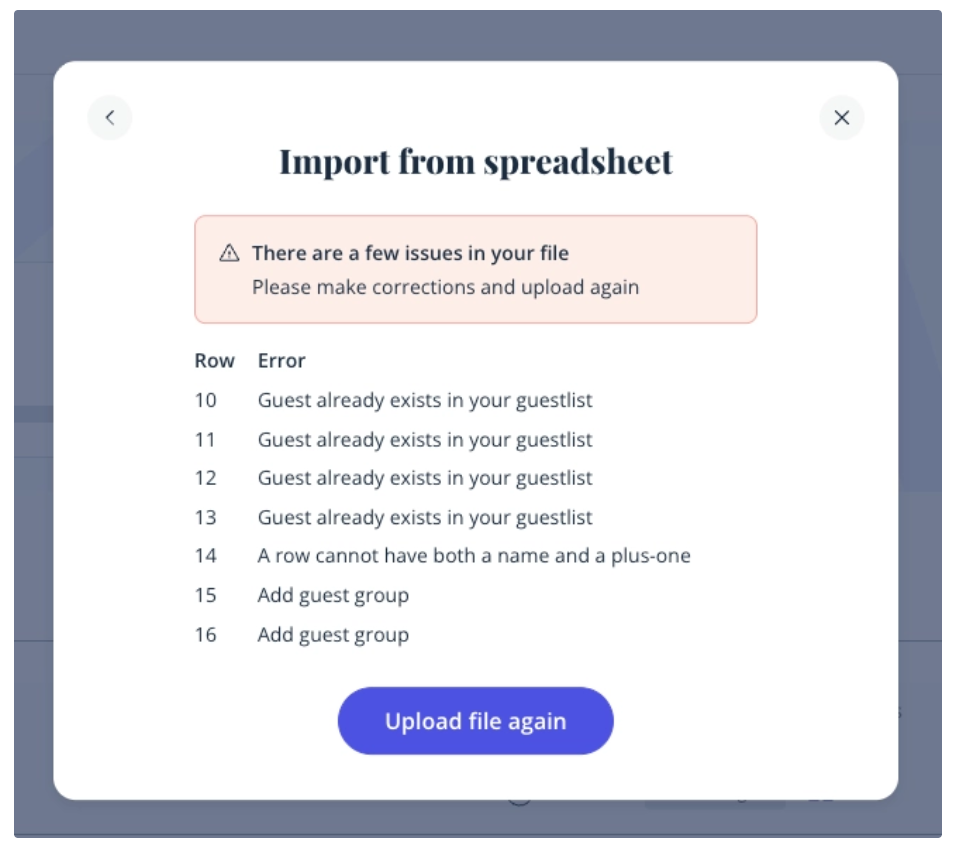
- Errors will appear in a pop-up
- Each issue includes a row number for easy reference
- You’ll need to fix all errors before uploading again
🚨 Common errors messages & How to fix them:
- File doesn’t match the template → Use the correct template
- Duplicate names → Remove or rename duplicates
- Multiple names in one row → Split into separate rows
- Unrecognised columns → Delete extra columns
- File won’t upload → Copy into a fresh template and try again
🔄 Re-uploading or starting fresh
- This tool is for adding new guests, not editing existing ones
- To re-import the same list:
- Delete those guests first, or
- Clear your full guest list and start again
📱 RSVP experience updates
- RSVP icons have been simplified on mobile for a cleaner view
- Desktop experience remains the same
- Guests can now RSVP to specific events individually (e.g. ceremony, evening reception)
🔒 Your data & privacy
Your spreadsheet is completely private to you.
- When you click “Make a copy”, the file is saved in your own Google Drive
- Bridebook does not store or access your spreadsheet outside of the upload process
💡 Final tip
If you’ve already started your guest list elsewhere — don’t start again from scratch!
Simply copy your existing list into our template and upload it in minutes 🙌