![Group 20534 (1).png]](https://support.bridebook.com/hs-fs/hubfs/Group%2020534%20(1).png?height=20&name=Group%2020534%20(1).png)
How to use Couples Manager
Couples Manager is your all-in-one tool to stay organised, manage enquiries, and convert leads into bookings. It gives you a clear view of every couple in one place, helping you respond faster, track progress, and make sure no opportunity is missed.
With Couples Manager, you can:
- See key couple details at a glance, including names, ideal dates, guest counts, enquiry details and response statuses.
- Find couples quickly using the search bar.
- Organise leads with custom labels.
- Track each couple’s journey using stages.
- Assign lead owners for clearer team follow-up.
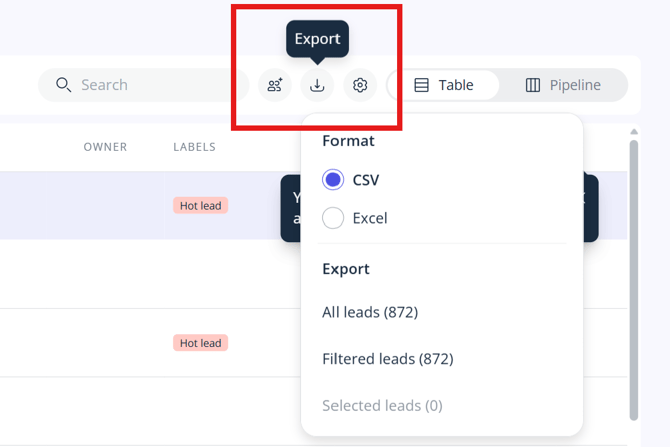
- Filter and export your leads.
- Import external couples manually.
- Message non-Bridebook couples from one central inbox.
- Add, edit and delete notes.
- Choose between Table View and Pipeline View.
- See where each lead has come from using the Lead Source column.
- Customise your table by hiding, showing and reordering columns.
See everything at a glance
Couples Manager gives you a clear overview of your leads, including important details such as:
- Couple names
- Ideal wedding date
- Guest count
- Lead stage
- Labels
- Owner
- Response status
- Lead Source, if enabled
This helps you quickly understand who each couple is, where they are in their journey, and what action may be needed next.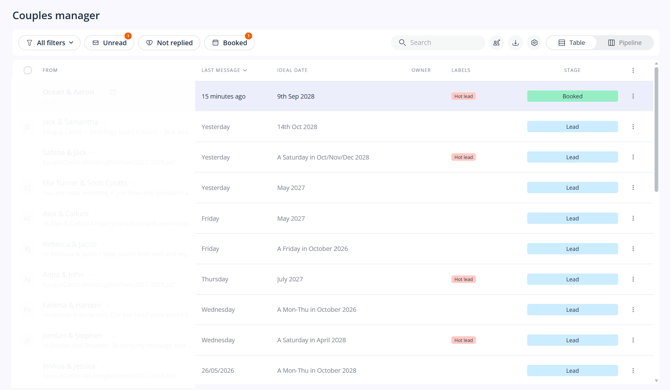
Find couples quickly with search
Looking for a specific couple? Use the search bar to find leads by:
- Name
- Email address
- Phone number
This is especially useful when checking in on a lead, preparing for a call, or finding details quickly during a busy day.
Stay organised with custom labels
Create labels that suit your workflow, such as:
- VIP
- Attended Open Day
- Follow Up
- High Priority
Labels make it easy to organise, sort, and prioritise your leads.
To create a new label, click the label menu and select + New at the bottom.
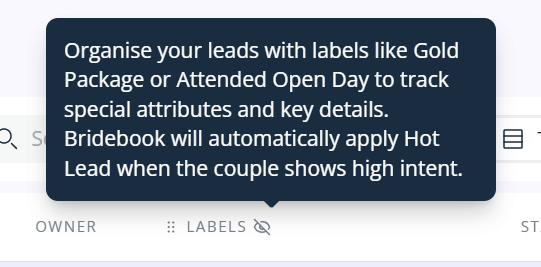
A Hot Lead label is also applied automatically to couples who are more likely to convert, based on the details they’ve provided. This makes it easier to spot high-potential leads at a glance.
Track progress with stages
Keep a clear overview of every couple’s journey by moving leads through stages:
- Lead – A new enquiry
- Qualified – A couple suited to your business
- Viewing Scheduled – An appointment has been arranged
- Awaiting Couple’s Decision – The couple is considering their options
- Date on Hold – A date has been tentatively reserved
- Booked – The couple has chosen your venue
- Wedding Completed – The big day has happened
- Lost – The couple has gone in another direction
Updating stages regularly helps you prioritise hot opportunities and follow up at the right time.
Assign leads for better team coordination
Assign an owner to each lead to make sure follow-ups are clear and consistent.
This is especially helpful for larger teams, busy venues, or peak enquiry periods, as it helps ensure every couple has a clear point of contact.
🆕The Owner column is now more compact, showing avatars instead of full names, helping keep your table easier to scan.-2.gif?width=598&height=399&name=couples-manager-en%20(1)-2.gif)
Find what you need with filters
Use filters to quickly narrow down your leads by details such as:
- Status
- Label
- Owner
- Message date
- Source
- And more
You can also export your filtered results with just a click.
Your filters are located in the top left of Couples Manager.
See where your leads are from
Couples Manager now makes lead sources clearer with the Lead Source column.
This column shows where each lead originated from, such as:
- Bridebook Enquiry – Sent via your Bridebook listing
- Widget Enquiry – Sent via the enquiry widget on your own website
- Lead Capture – Sent to your personalised Bridebook Lead Capture email address
- Imported Lead – Manually imported into Couples Manager
This helps you understand where your couples are coming from and tailor your follow-up accordingly.
For example, a couple who enquired through your website widget may already be familiar with your venue, while an imported lead may need more context or a warmer introduction.
Important note:
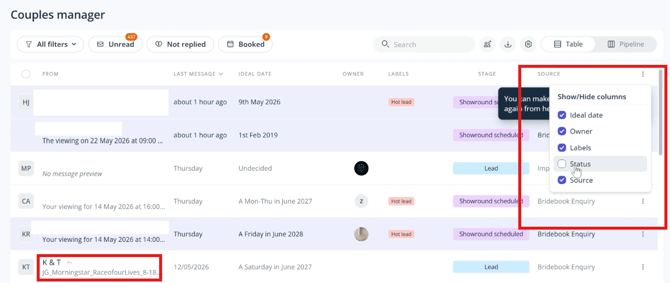
The Lead Source column is hidden by default.
For venues not using external lead sources, this column would mostly show Bridebook Enquiry, so we’ve kept it hidden to avoid adding unnecessary noise to the default table.
You can turn it on at any time using the table customisation controls.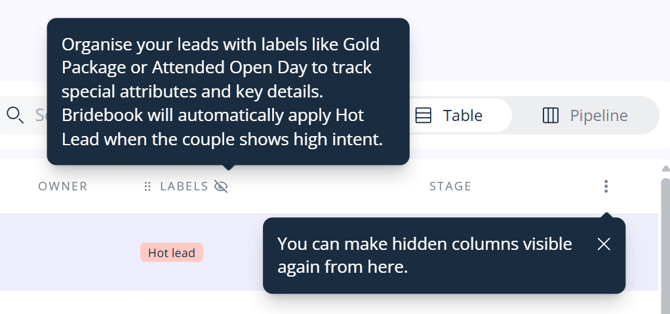
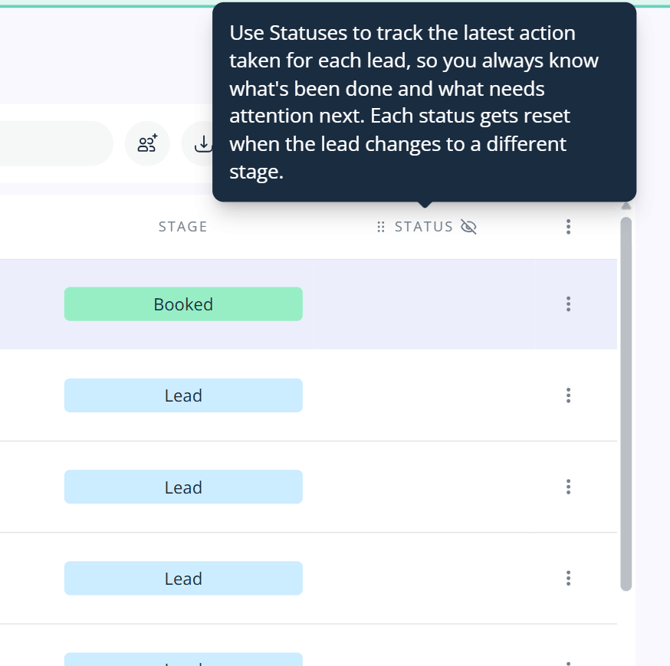
Customise your Couples Manager table
You can now customise your Couples Manager table to suit the way you and your team work.
You can:
- Hide columns you do not need
- Show columns that are useful to your workflow
- Reorder columns
- Access column controls from the column header
- Access column controls from the kebab menu
- Use the smaller Owner column with avatars instead of full names
To customise your table, open the column controls from either the column header or the kebab menu.
This gives you more flexibility and helps keep your Couples Manager view clean, focused and easy to use.
Choose your view: Table or Pipeline
You can manage your leads using either:
- Table View – A classic list-style layout showing your couple details in columns.
- Pipeline View – A visual stage-based view showing where your couples are in their journey.
Pipeline View gives you a quick and clear snapshot of your leads, grouped by stage.
Import couple data
You can manually import external couples into Couples Manager and manage them alongside your Bridebook enquiries.
This is useful if you have leads from other sources and want to keep everything in one central place.
Message non-Bridebook couples
You can message non-Bridebook couples directly from Couples Manager.
Messages are kept in one central inbox, helping you manage communication clearly without switching between different tools. Couples will receive messages by email or push notification if they are using the Bridebook app.
Add notes to couples
You can add notes to each couple to record key details, reminders, or useful context.
This is perfect for team handovers or keeping track of important information, such as:
- Budget notes
- Visit preferences
- Follow-up reminders
- Special requests
You can also edit and delete notes when needed.
Why use Couples Manager?
With Couples Manager, you can:
- Respond faster
- Stay organised
- Track every lead from enquiry to booking
- Understand where your leads are coming from
- Keep communication in one place
- Assign clear ownership across your team
- Prioritise the most important opportunities
- Never miss a chance to convert a lead into a confirmed wedding
Prefer a walkthrough?
Check out our How to use Couples Manager for a step-by-step guide.
👉 Access Couples Manager here
💎 Not a VenuePro member yet? Discover our plans here.
Need help?
If you need support getting set up, our Customer Support team is always happy to help.