![Bridebook-logo-blue (1)-1.png]](https://support.bridebook.com/hs-fs/hubfs/Bridebook-logo-blue%20(1)-1.png?height=20&name=Bridebook-logo-blue%20(1)-1.png)
Bridebook makes collecting RSVPs simple
Your personalised Wedding Website allows guests to respond online, so you can collect and track replies all in one place.
This guide explains exactly how it works, both for you and for your guests, with tips to keep everything smooth and stress-free.
✨ What you can do with RSVPs
With Bridebook’s RSVP system, you can:
- Share your Wedding Website link with guests
- Let guests RSVP online (no apps or logins required)
- Track responses in real time
- View extra guest details (such as dietary needs, travel plans, notes, and song requests)
- Message guests directly via your inbox (perfect for reminders or updates)
- Customise RSVP questions to suit your day
- Manage all guest information in one place
📅 How RSVPs work (for you)
Once your Wedding Website is live in the Bridebook app, you can:
- Create and manage your guest list
- Set up and customise RSVP questions
- Share your RSVP link via text, email, or any platform you like
- Track replies instantly as guests respond
- View live attendance updates and guest details
- Edit or update guest information at any time
- Link guests to specific events (ceremony, reception, brunch, etc.)
- Manage everything centrally without spreadsheets
👥 How guests RSVP
Your guests will follow a simple, guided process:
1. Receive your RSVP link
You send guests a direct link to your Wedding Website.
2. Open your Wedding Website
They’ll see key wedding details such as:
- Date and location
- Venue information and schedule
- Accommodation details
- Gift registry or wishlist
3. Start the RSVP
Guests tap the RSVP section - no login or download required.
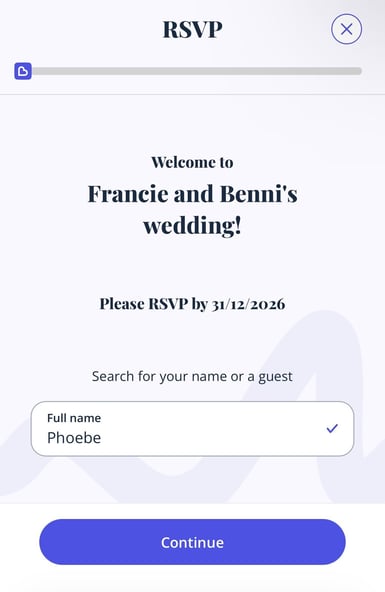
4. Find their name
They must enter their name exactly as it appears on your guest list (case, spacing, and spelling matter).
For example:
“Elizabeth Holmes” must be entered exactly - “Liz Holmes” will not work.
5. View their party
Once their RSVP is submitted guests can see:
- Their assigned group/party
- Any plus-ones linked to them
- Other guests connected to their booking
6. Respond to invitations
Guests can:
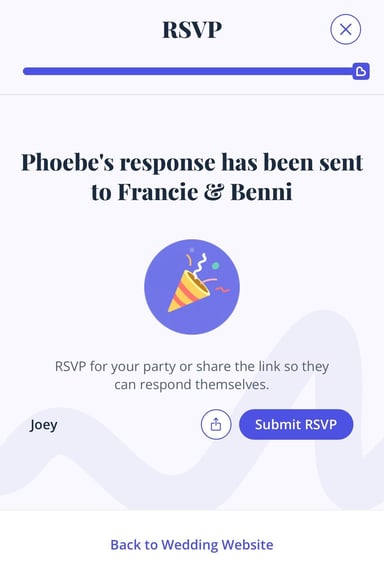
- RSVP for themselves
- Switch between names in their group
- Respond on behalf of multiple people in one flow
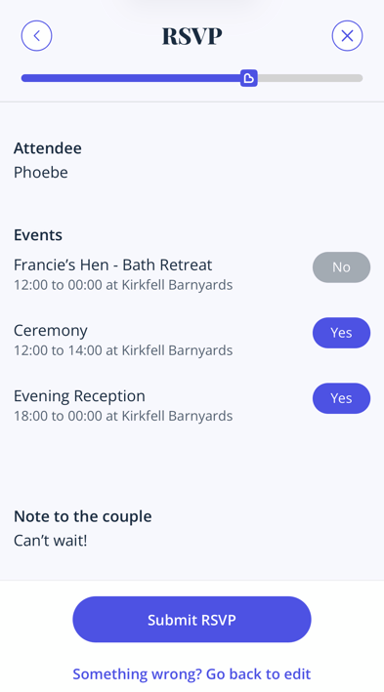
Each guest will also see exactly which events they’ve been invited to (for example, ceremony only vs full-day invite).
7. Submit and manage responses
After submitting, guests can:
- Go back and complete RSVPs for others in their party
- Edit their responses if needed
- Continue through all invitations in one session
8. Confirmation
Once complete, guests can:
- Save your wedding details to their calendar
- Email themselves a copy of their RSVP confirmation
👨👩👧 RSVP for groups & plus-ones
Bridebook now makes group RSVPs even easier:
- Guests can see their full party in one place
- Plus-ones are clearly shown and easy to include
- One guest can complete RSVPs for multiple people
- Each guest’s invitation is personalised based on event access
- Guests can switch between names without restarting the process
Some guests can also copy a personalised RSVP link for another person in their group, making it even quicker for everyone to respond.
⚠️ Important
To avoid issues with RSVPs and event visibility:
- Guests must be assigned to at least one event to appear in RSVP search
- If a guest is not invited to an event, they will not be able to RSVP
- If you add new guests later, they may not automatically be linked to existing events
➜ Always double-check event assignments after adding or editing your guest list
📅 Managing your wedding events
You can create and manage multiple events directly in Bridebook - perfect for multi-day celebrations, including ceremonies, dinners, brunches, and more.
🔍 Where to find your events
From the Wedding Website section:
- Select Wedding Website
- Click into Wedding Details
- Scroll to Schedule
- Tap Manage My Events
From the Guest List:
- Select Guests & RSVP
- Tap Events at the top
From both areas, you can add and manage events easily.
➕ Creating a new event
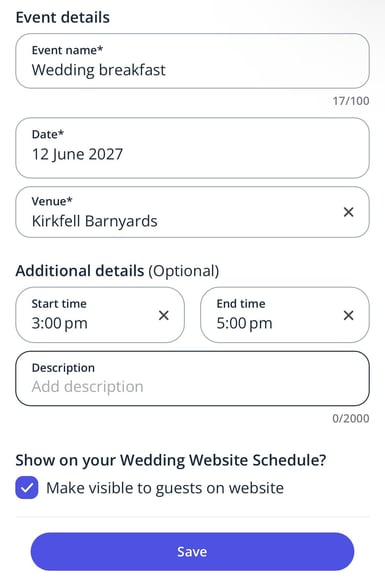
When adding an event, you’ll need to:
- Choose an event type
- Name your event (e.g. Ceremony, Mehndi, Welcome Dinner)
- Add a date
- Select a venue (required)
You can also:
- Create custom venues (e.g. “At Home”)
- Add start and end times
- Include a description or timeline
- Choose whether the event is visible on your Wedding Website
There is no limit to the number of events you can add.
🎟️ Invitation types & guest filtering
When assigning guests to events, you can select an invitation type:
- All-day invitation
- Evening-only invitation
You can also:
- Assign guests to specific events individually
- Filter guests by invitation type (All-day or Evening-only)
- Easily view and manage attendance using filters in your Guest List overview
💡 Why RSVP and Events together work so well
Using Bridebook for RSVPs and Events means:
- Everything is centralised in one place
- Guests can respond quickly and clearly
- You avoid chasing replies manually
- Event planning stays organised and flexible
- You can tailor every detail to your celebration style
It’s a simple, stress-free way to manage your guest list - from first invite to final RSVP 💙
If you need any help at any point, our Customer Support team is here for you - Contact Us and we’ll be happy to help 💙